Pan and Tilt Camera – View More of the Room than Ever Before
Crying and Motion Alert
2-Way Talk “Walkie Talkie” Function”
Night Light to Soothe Baby
Time Task Function
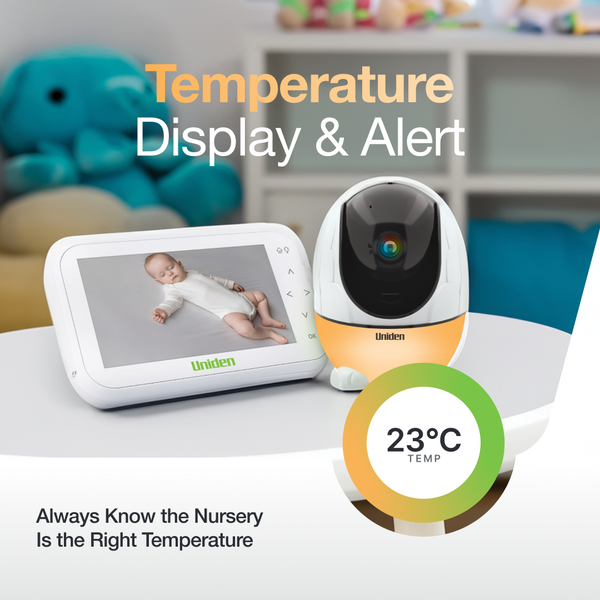
Temperature Display and Alert
Night Vision
Lullabies Including White Noise
What's in the box
1 X 4.3" Colour LCD Display Screen
1 X Portable Indoor Video Camera
2 X AC Adaptors
"2 X USB Cables
Overview
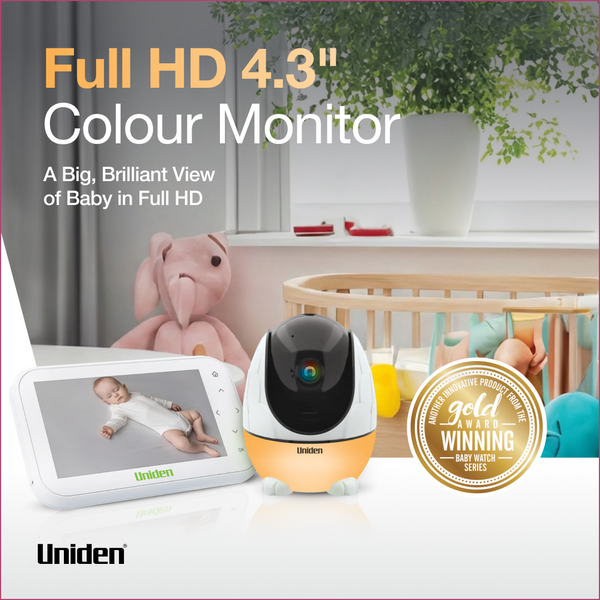
This system has a large 4.3″ colour screen designed to monitor the safety of your sleeping baby or kids playing with an exceptionally user-friendly, high quality digital encrypted monitoring system. The camera included has a pan and tilt feature giving you the capability of changing viewing angles to capture all in the nursery.
With a handy 2-Way Talk Function, you can now talk to and soothe your baby from the other room. The BW3531 also comes with a selection of Lullabies to play to your baby.
This system with its 4.3″ Colour LCD Display Receiver so that you can see and hear your child, even during the evening with Night Vision. The BW3531 includes crisp night vision for all-night security and allows parents to see their baby in the early morning and late at night. It also includes a room temperature display function with temperature range alerts through the monitor.
Disclaimer
All brand names are registered trademarks of their respective owners. Uniden Baby Watch® is a trademark of Uniden Australia Pty Ltd. All diagrams, product photography and front cover photograph of hand and smartphone are for illustration purposes only. Some products may vary at the time of production. Smartphone not included. * Portable: meaning, camera still having access to mains power. Not battery powered.
Operation Manuals & Downloads
Operation Manual
Download the complete operation manual for this product
Choosing a selection results in a full page refresh.
Opens in a new window.
PayPal Pay Later Messaging
Step 1: Choose message placement
Click the button below and then hover over your page to select a placement.
Step 2: Paste and save
You have copied the placement for the Product Page.
Go back to the App Embeds section, and in the Paypal Advanced Settings, paste the copied value into the
Product Page field and click the 'Save' button in the top right corner.