



Security cameras
Before mounting the camera, get the mobile connection right.
A practical guide to the connection your 4G camera needs, without assuming one data allowance suits every property.
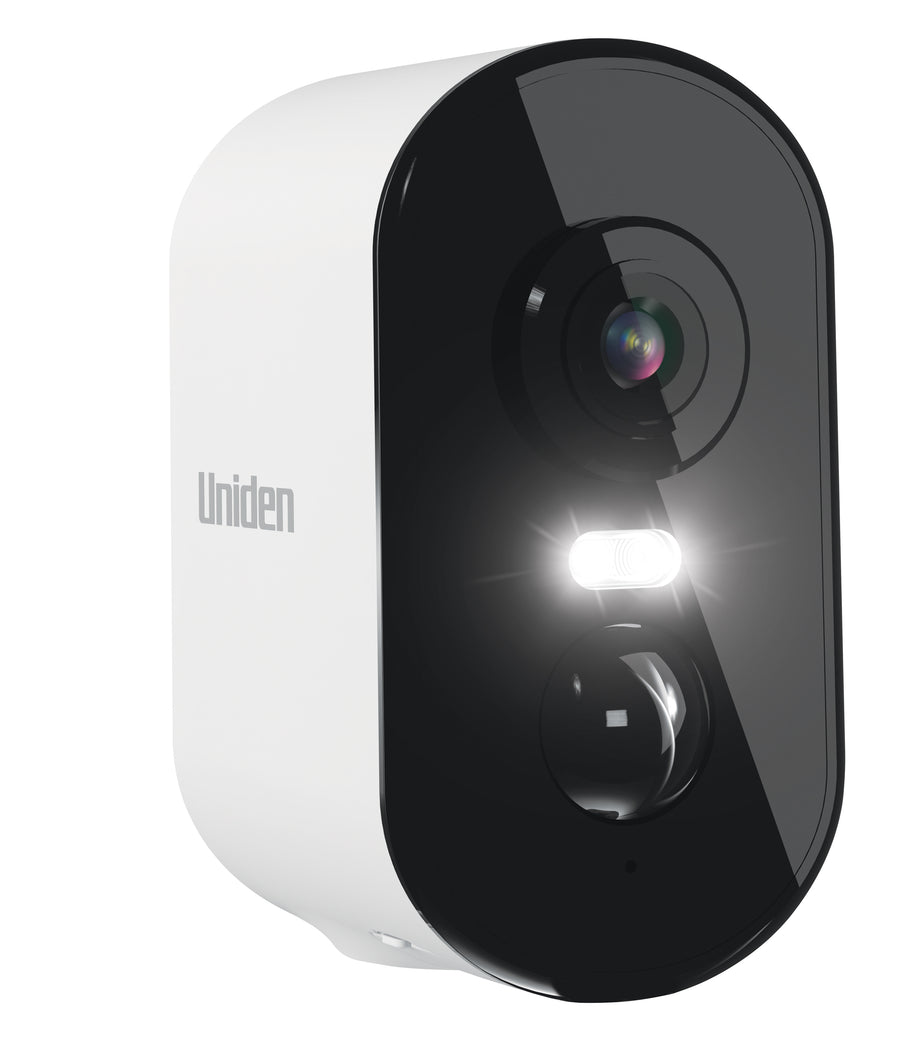
TL;DR
- Confirm SIM and service compatibility for the exact camera before buying a plan.
- Test mobile service at the intended mounting point, not only near the house.
- Activate the service, follow the manual's SIM installation steps and pair the camera in My Uniden +.
- Measure your own usage. Local recording, cloud uploads and live viewing have different data implications.
A 4G security camera can monitor a location without home Wi-Fi, but it still needs a compatible SIM and active mobile data service. Choosing a camera and choosing its connection are two parts of the same installation.
This guide covers the connection checks for the SOLO X2K 4G Pro Kit and SOLO X2K 4G Plus, including coverage, setup and data use at a farm, shed or site.
1. Confirm the SIM and service requirements
The current 4G Pro and Plus product information specifies a Nano SIM with a data plan. Check that the chosen service is compatible with the camera and suitable for how you intend to use it.
Confirm the plan's activation process, expiry or renewal rules and where you can check usage. A service that expires while the property is unattended can interrupt remote access even if the camera remains powered.
If the supplier needs a network setting or additional configuration, follow the camera's current instructions and the service provider's documented steps. Do not assume a SIM that works in a phone has been confirmed for the camera.
2. Test at the gate, shed or site entrance
Start with coverage information, then check the physical location. A connection beside the farmhouse does not establish that the camera can connect behind a metal shed or at a distant gate.
Test the camera before completing the mount. Check live view and an event recording at the intended position. If another suitable position has a better connection, make sure it still captures the important approach.
For a temporary site, repeat that check as the layout changes. New structures, equipment and fencing can affect the available view and connection.
3. Pair and test the camera before final installation
- Prepare and activate the compatible SIM and data service.
- Charge the camera using the model's recommended method.
- Install the SIM and check the local storage card according to the manual, including any power-off instructions.
- Add the camera through the current My Uniden + setup flow.
- Confirm live view, a saved event and notifications.
- Test access from away from the site's network.
- Finish the mounting and charging setup, then repeat the checks.
Keep the camera name useful. “North gate” or “Machinery shed entrance” is easier to identify in an alert than a default device name.
4. Understand what uses mobile data
Live viewing sends footage to your phone. Downloading recordings and uploading motion clips to the cloud can also use the camera's mobile connection. Local card recording is a different process from continuously uploading all footage.
Usage varies with settings, activity, the amount of viewing and the number of people checking the camera. There is no reliable universal monthly allowance for every site.
Monitor the service's usage report during the first period of normal operation. Check again if you change recording settings or begin watching the camera more often. Use actual usage to assess whether the plan fits the installation.
5. Keep the data plan separate from the storage plan
The mobile service supplies connectivity. The microSD card supplies local storage. Cloud backup supplies an uploaded copy of supported recordings. Paying for one does not automatically supply the other two.
For the Pro, OnWatch provides a local background timeline alongside motion events. Our OnWatch recording explanation covers the difference between that timeline and cloud event backup.
When choosing hardware, use the 4G Pro versus Plus comparison to match the recording method to the job. Do not choose a mobile data allowance from the words “24/7 recording” alone.
6. Make the first-week checks part of the installation
Review battery level, useful notifications, saved footage and mobile usage. Confirm that the camera remains reachable at different times of day and that the panel or charging arrangement suits the workload.
If the location has reliable home Wi-Fi, also consider whether you need 4G at all. Our Wi-Fi versus 4G guide compares the connection options. If the battery trend is declining, use the solar charging checklist to review the physical setup.
Frequently asked questions
Can I use a phone SIM in a 4G camera?
Compatibility needs to be confirmed for the exact camera and service. Check the camera instructions and mobile service requirements before buying or inserting a SIM.
How much mobile data will the camera use?
It depends on live viewing, uploads, downloads, activity and settings. Measure your normal use through the mobile service's reporting rather than relying on one allowance for all sites.
Does a microSD card remove the need for a data plan?
The card stores recordings locally. An active mobile connection is still needed for the camera's remote functions.
Why can the camera work at home but not at my gate?
The mobile connection can differ between locations. Test the intended mounting point and confirm the SIM service is active and compatible.
Connect the property you actually need to watch.
Choose the model's recording features, then confirm the connection at your site.
4G SIM setup and data use: reviews and official guides
The 4G Plus review discusses SIM selection and measured data use. Use the model guides for setup. The reported 1.9 GB over three weeks is that reviewer's usage, not a recommended allowance.
Media coverage


Share:
Solar Security Camera Battery Draining Charging Guide
Wifi vs 4g Security Cameras